React Native
React Native installation guide.
Install the UI package
Follow the instructions described in the General Installation guide to install the UI package.
NPM_TOKEN='<token>' npm install @smartacteam/react-native-uiConfigure Global Theming
To configure Theming, modify the App.tsx file in your project and make sure it looks like this:
import { useCreateSmacTheme } from "@smartacteam/react-native-ui/styles";
import { SmacOverlayProvider } from '@smartacteam/react-native-ui';

...

const App: React.FC = () => {

  ...

  const { smacTheme } = useCreateSmacTheme('light');

  return (
      ...
        <NavigationContainer
          theme={smacTheme}
        >
          <SmacOverlayProvider>
          ...
          </SmacOverlayProvider>
        </NavigationContainer>
      ...
  );
};
You can provide custom colors and font for theme, read quidelines:
useCreateSmacTheme.
If you want to use custom theme for one component, just wrap it with
<SmacThemeProvider theme='smac-dark'>...</SmacThemeProvider>
Using the UI components
You can now use the UI components in your Next.js application. For example, to use the Button component inside a Home.tsx file:
import { Button } from '@smartacteam/react-native-ui';

export default const HomePage = () => {
  return (
      <Button>Click me</Button>
  );
};
Configure Icons
Copy icon pack to your project:
mkdir -p ./src/assets/fonts/Smartac/
cp ./node_modules/@smartacteam/react-native-ui/styles/font/smartac-icons.ttf ./src/assets/fonts/Smartac/
Then, Update react-native.config.js if needed:
module.exports = {
  assets: ['./assets/fonts/Smartac'],
};
Link assets:
npx react-native-assetCheck if Info.plist was updated, and add the font if you have multiple plists:
<key>UIAppFonts</key>
<array>
    ...
+    <string>smartac-icons.ttf</string>
</array>
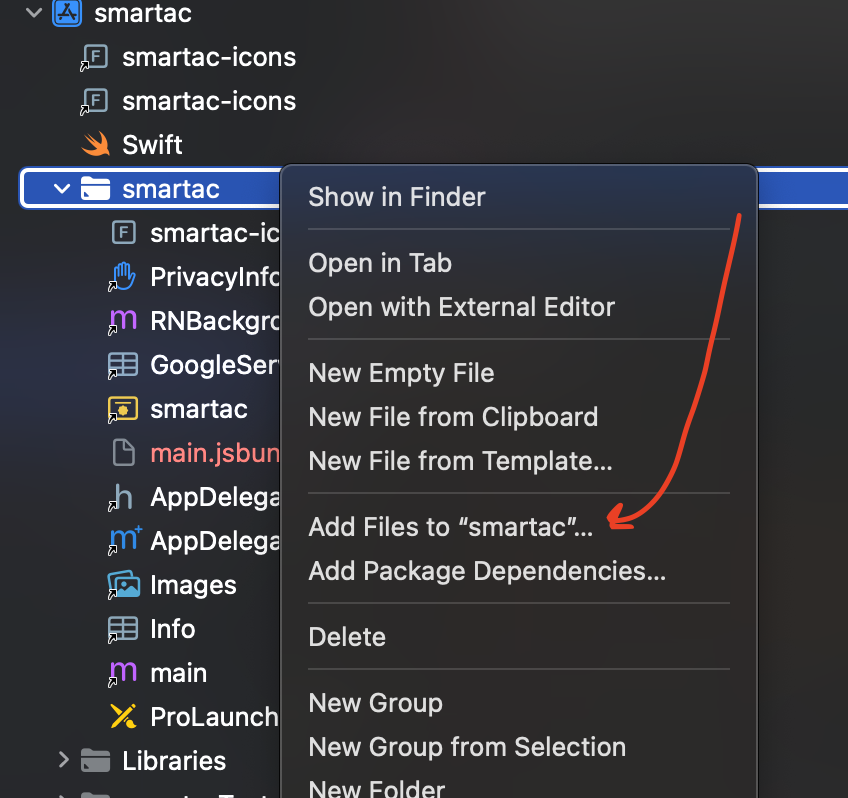
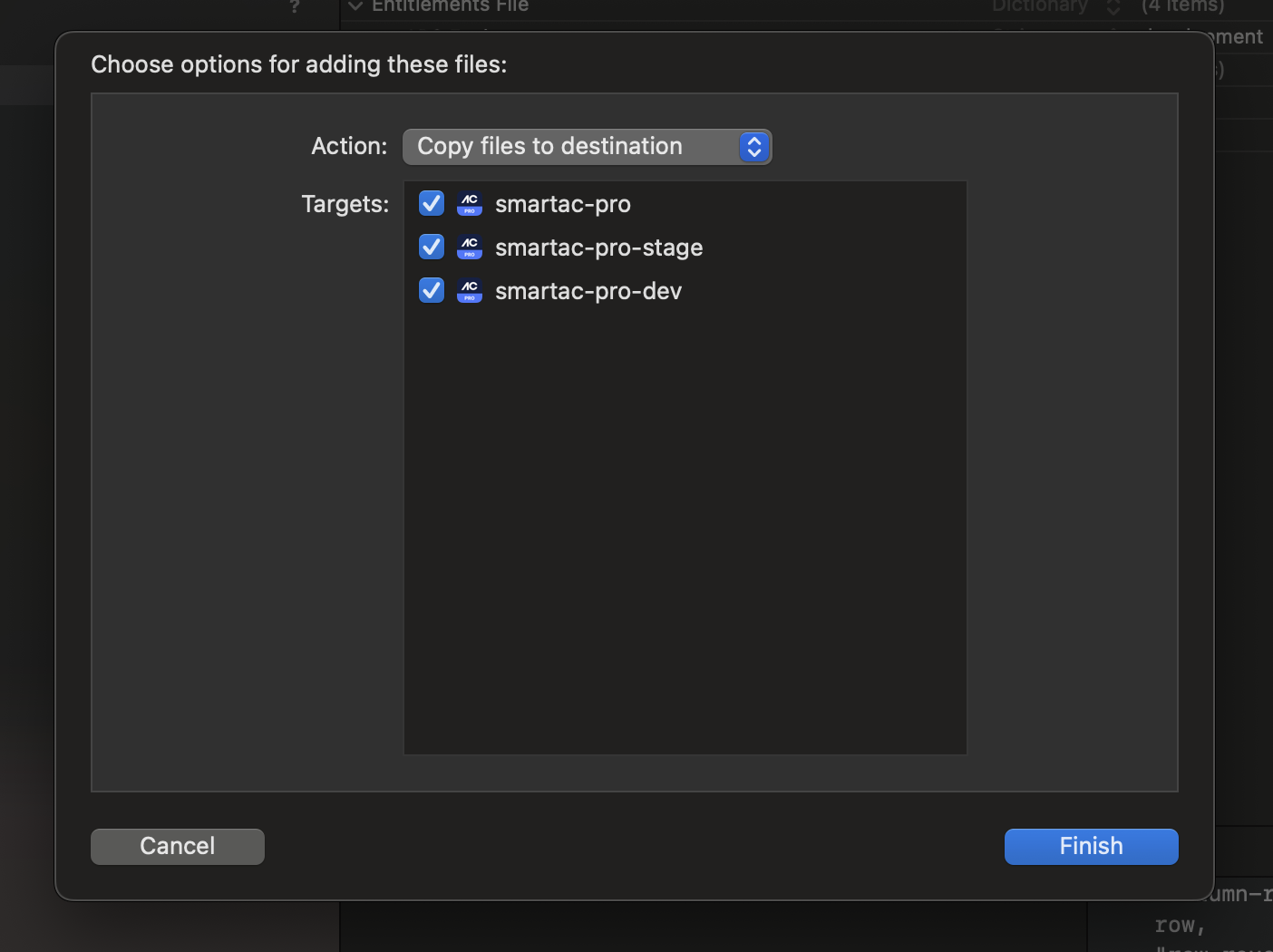
Add font to Copy Bundle Resources in Xcode: